How to Use Discover Profile?
Learn username search and email OSINT with Discover Profile. Follow illustrated steps, interpret scan statuses, and verify possible accounts at their source.
A familiar username can lead to several unrelated people. An email address can produce a registration signal without revealing a public profile. The useful part of account discovery is learning which observation you have, where it came from, and what remains unproven.
This guide explains how to find social media profiles with Discover Profile, inspect the full scan response, and verify promising leads. It covers username search and email OSINT together because they answer different questions. The screenshots illustrate interface behavior; they do not establish account ownership. Personal identifiers have been masked without changing the displayed scan counts or result statuses.
What is Discover Profile, and which search should you use?
Discover Profile is a browser interface for reviewing public-source account signals. Its social media profile finder checks an exact username across configured sources; its email account lookup reviews possible registrations associated with a complete address. Both organize positive cards alongside a broader response log. Neither authenticates a person's identity.
A single platform search offers useful context but only covers that platform. A cross-site username lookup helps locate candidates across social networks, developer communities, creator pages, and other services. Broader coverage also introduces ambiguity: short handles are reused, accounts are renamed, and platforms return incomplete responses.
| Mode | Input and purpose | Configured coverage | Positive status |
|---|---|---|---|
| Username | One exact handle; locate candidate profile routes and available public metadata. | 2,518 checks, 17 categories; up to four category lanes concurrently. | Found |
| One complete address; review service-specific registration signals. | 168 services, 20 categories; one category lane at a time. | Registered |
These are configuration totals, not promises of successful responses or verified accounts. Availability and detection rules change. The search methodology explains the underlying classification and request flow.
Before starting, define a limited question: reviewing your own digital footprint, assessing an authorized account, or checking a public claim. Record the identifier's provenance and the observation date. Decide what would count as corroboration before the results arrive. Collecting every same-name account first and looking for a story afterward encourages mistaken attribution.
Part 1: How to find social media profiles by username
1. Enter an exact username and choose Privacy Mode
- Open Username Search, or select the Username tab.
- Enter the handle alone, without the leading
@or a complete profile URL. - Set Privacy mode before submitting if you want this scan excluded from application history.
- Select Start scan and review the live workspace as responses arrive.
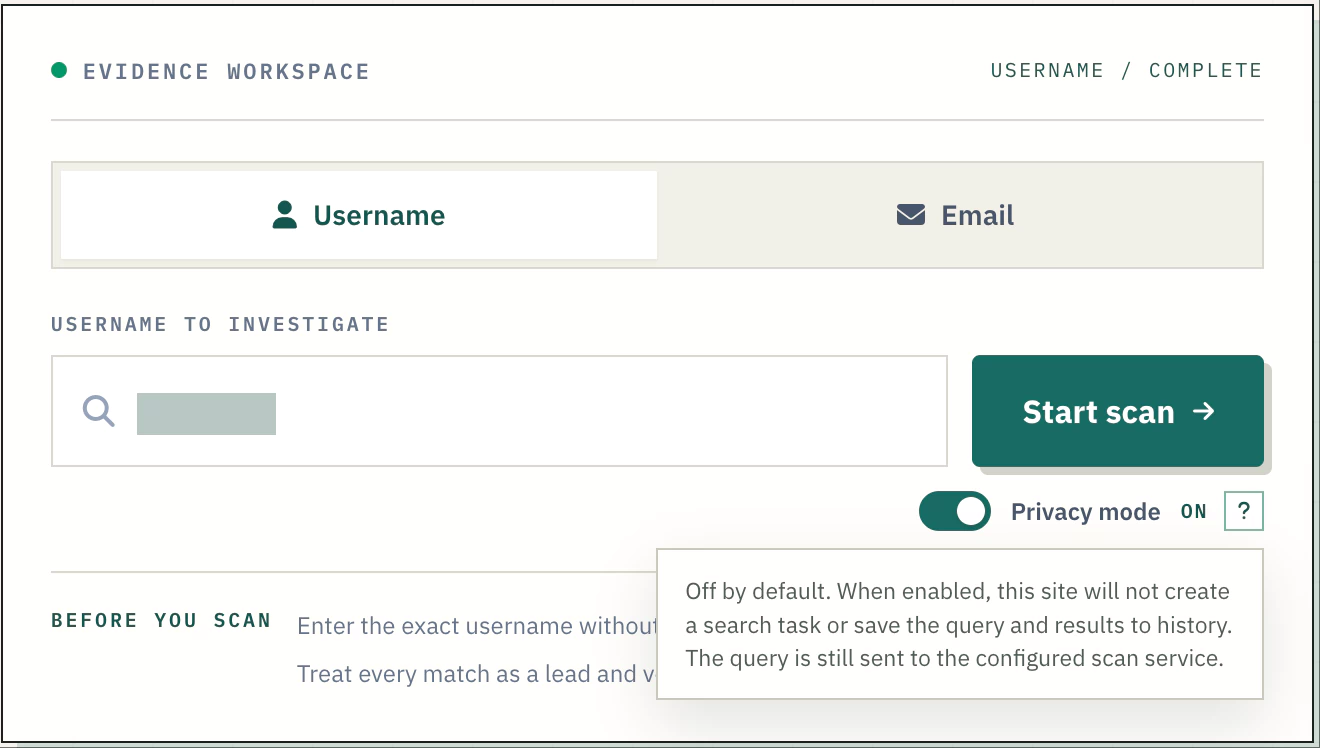
The browser trims surrounding whitespace, rejects an empty value or internal whitespace, and limits usernames to 100 characters. It does not extract a handle from a pasted profile URL. Supply the exact spelling you observed, including meaningful punctuation; platform rules differ, so an accepted input is not necessarily a valid handle everywhere.
Privacy Mode is off by default. When enabled before submission, the client skips first-party search-task creation, positive-result saving, and task completion. The submitted username still goes to the configured scan service with the category, page, and request metadata. This is a history control, not complete anonymity or a guarantee about provider logs.
For a practical search, begin with a handle taken from an authorized source. If the first run is inconclusive, investigate a documented spelling variation separately and label it as a separate hypothesis. A display name containing spaces and a platform's account handle are different identifiers; replacing one with the other can change the research question.
2. Read live progress and use Pause or Restart
Username scans run up to four category lanes concurrently. Within each category, pages are requested sequentially, starting at page 1 and following the API's next-page indicator. A lane takes another category when its current category ends. Matches and log rows appear incrementally, so you can inspect early leads while other categories continue.
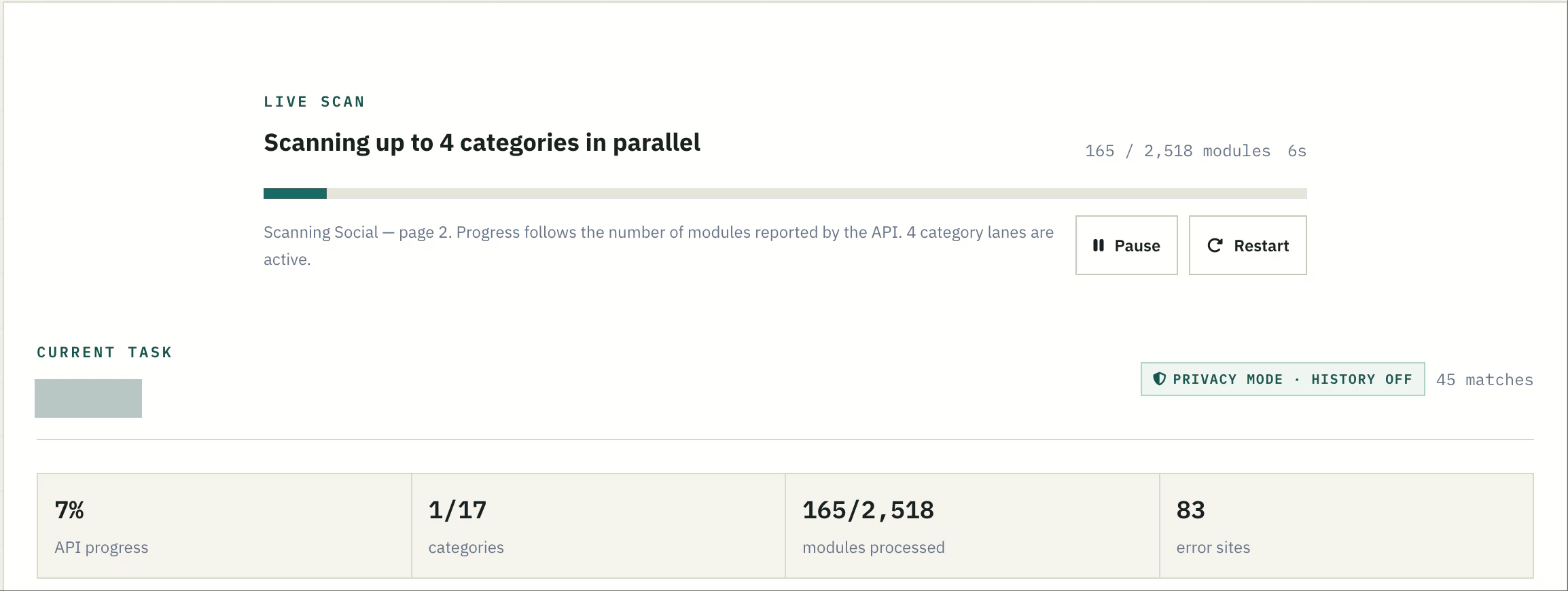
- API progress compares accumulated reported modules with the configured total. It is not a confidence score.
- Modules processed uses API pagination counts, falling back to returned rows when that count is unavailable.
- Categories counts category routines that have ended, including ones stopped by a request failure.
- Error sites counts returned rows classified as errors. A whole-page request failure is tracked separately and may leave missing rows.
- Matches counts distinct positive cards, deduplicated by normalized site name and URL.
In Figure 2, 165 processed modules and 45 possible matches do not mean 45 verified identities. Nor do the 83 error sites become negative results. The interface holds progress below 100% while work remains and closes at 100% when the category workers finish. A finished run can still contain errors or incomplete categories.
Pause stops the next page or category request from starting; it does not cancel an HTTP request already in flight. A pending response can still update the screen. Select Continue to resume. Restart starts a fresh run for the current query and privacy choice, resets the displayed results, and makes the interface ignore late responses from the earlier run. It does not erase history already saved by that run or retract requests already sent.
Use Pause when you need time to examine the log. Before restarting, record any important failure and its context; restarting is a new observation, not a continuation of an evidentiary record.
3. Examine discovered names and email addresses
Profile details discovered extracts leads from positive username responses. The current parser examines extra, with details as a fallback, including nested objects and JSON-like strings. Name-like fields can include name, username, fullname, display names, aliases, and combined first and last names. Email-looking strings are collected from those returned details.
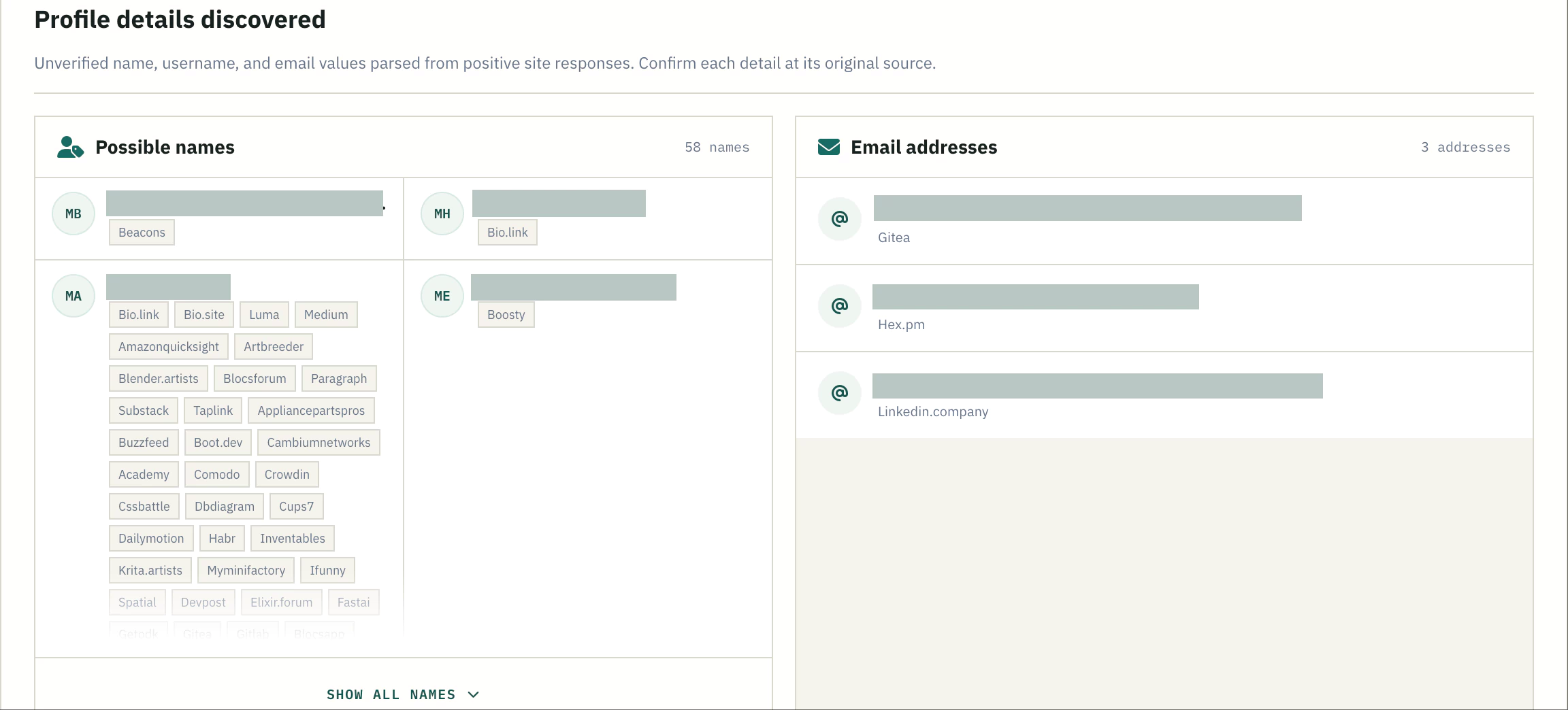
The names panel groups matching normalized values and attaches their source sites. Case differences can therefore appear under one entry. Use Show all names when the panel is shortened. Grouping means the text recurs; it does not establish that those accounts share an owner. The parser also has depth and traversal limits, so this panel is not an exhaustive extraction of every possible field.
Start with the source labels. Open the underlying profile, find the field that supplied the value, and ask whether it describes a person, an organization, a project, or quoted material. A shared display name offers weaker evidence than an explicit link between two profiles. Several sites copying the same biography are not several independent confirmations.
A discovered email could be a contact address, a project mailbox, an automated no-reply address, or text mentioning another person. Check its role at the original source before associating it with anyone. The three addresses shown in Figure 3 are examples of interface output, not verified ownership findings. Username correlation is not identity verification.
4. Review possible account matches and extra details
The Possible account matches area includes username rows whose normalized status is exactly Found. A card shows the platform, category, positive status, and source navigation when a valid URL is available. The favicon is a navigation aid, not an endorsement or an additional verification signal.
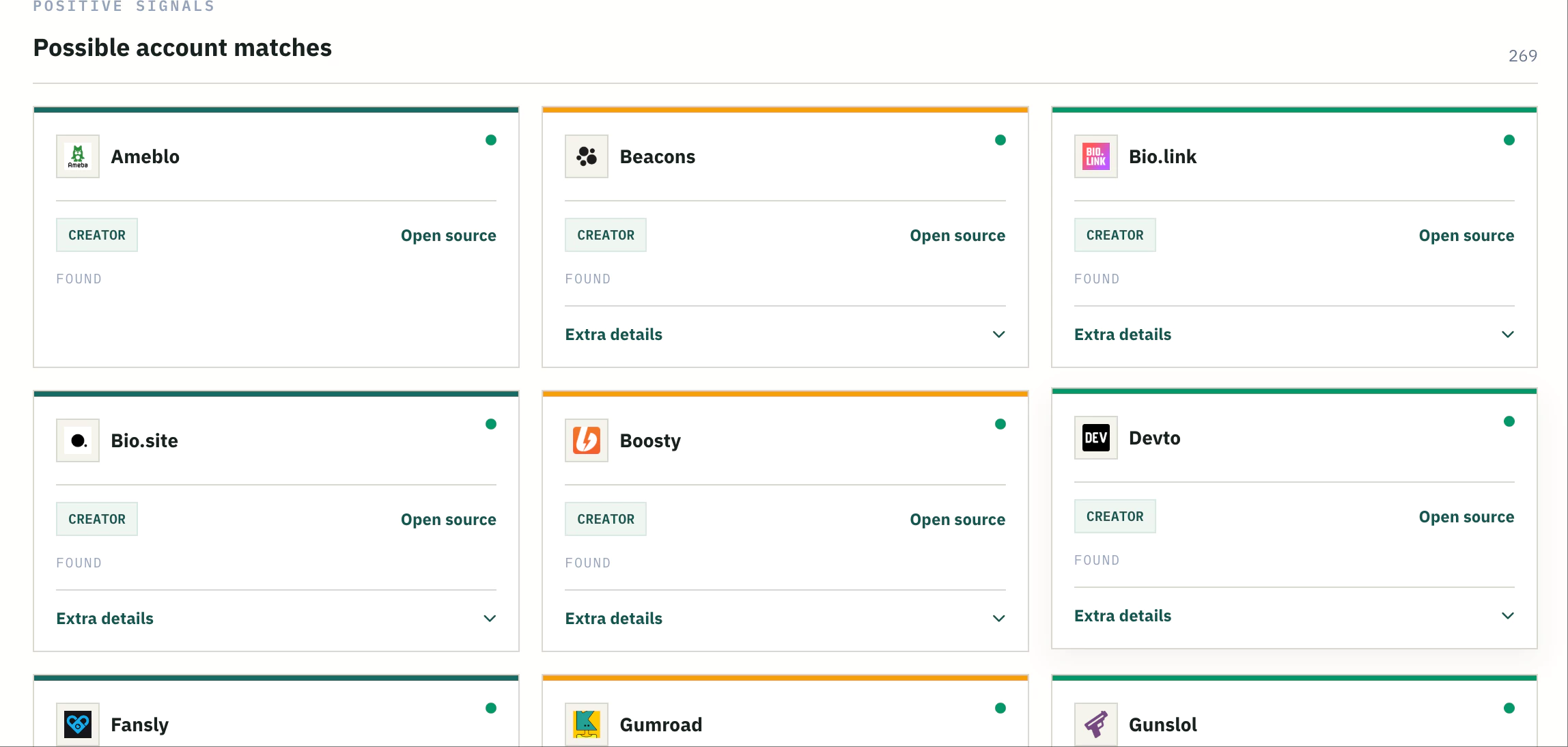
Select Open source to inspect the original route. Confirm that it actually identifies the requested handle rather than a login page, generic landing page, or similarly named account. The colored strip across a card cycles through visual accents; it is not a ranking or confidence scale. If no valid URL was returned, the interface shows No URL.
Expand Extra details where available. Some checks return little beyond a status; others include public profile metadata. Different source modules and platform responses expose different fields, so missing metadata does not imply that the profile is fake or empty.
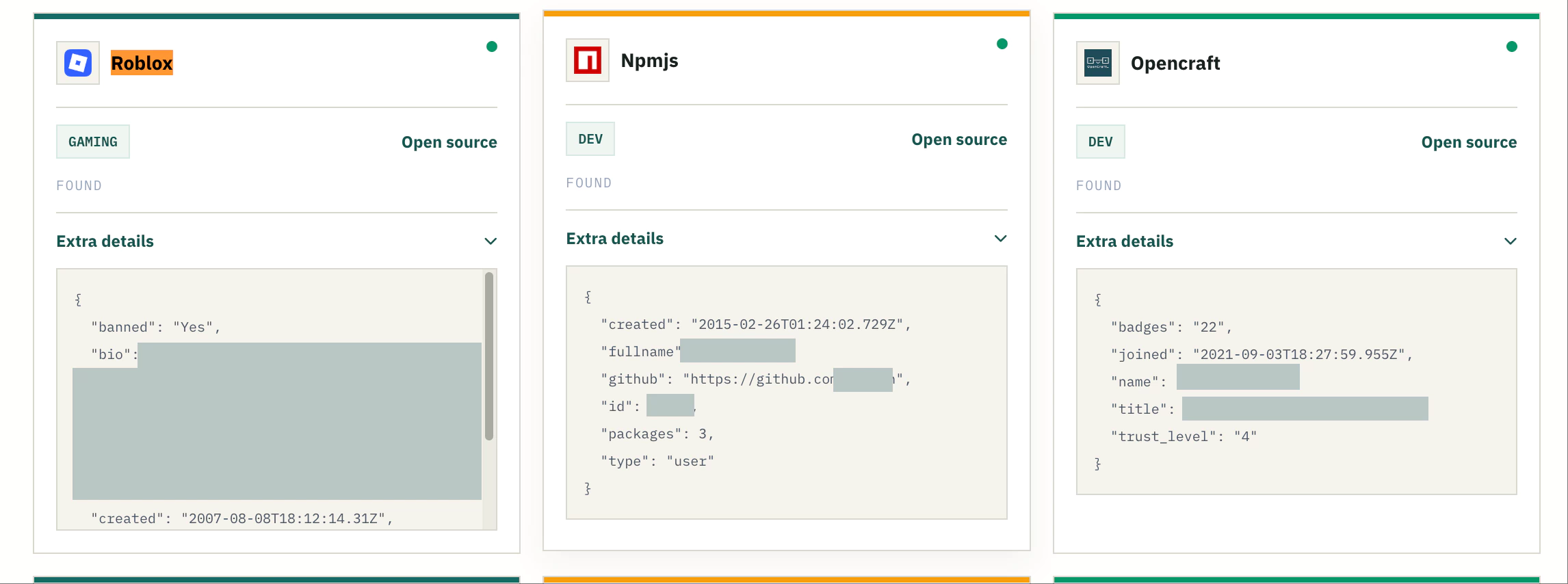
Here, Roblox returns fields including bio and created. Npmjs exposes fullname, github, created, and packages; Opencraft includes name, joined, and badges. These differences help plan follow-up: a public repository link may support a direct cross-reference, while a package count describes activity on one platform.
Creation and join dates can test a proposed timeline, but they are source-reported fields with platform-specific meanings. A linked GitHub URL can be copied or outdated. Read the original page and seek reciprocal or independent corroboration before merging accounts. The illustrated services are not asserted to belong to one person.
5. Inspect complete results and raw evidence
All returned site rows includes positive, negative, unknown, and error responses organized by category. Review Social, Dev, Creator, Community, Gaming, and other relevant groups using Expand and Collapse. Headers show site, found, error, and page counts, although the page total is hidden on narrower screens.
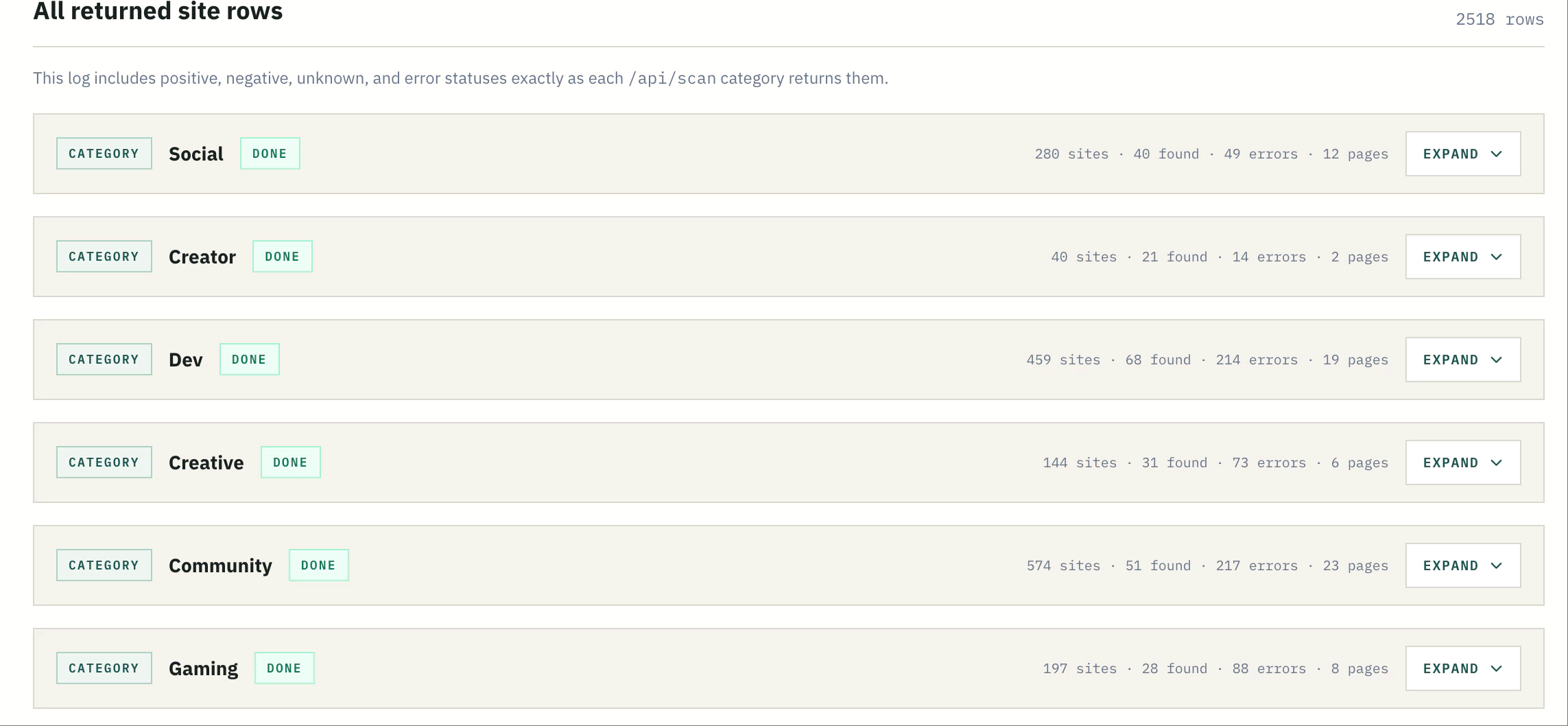
Pagination describes successive API response pages within a category. The browser follows them automatically; the page total is not a count of profile pages that a researcher has personally reviewed. A category marked Done can have errors, and a page-request failure ends that category without an automatic retry.
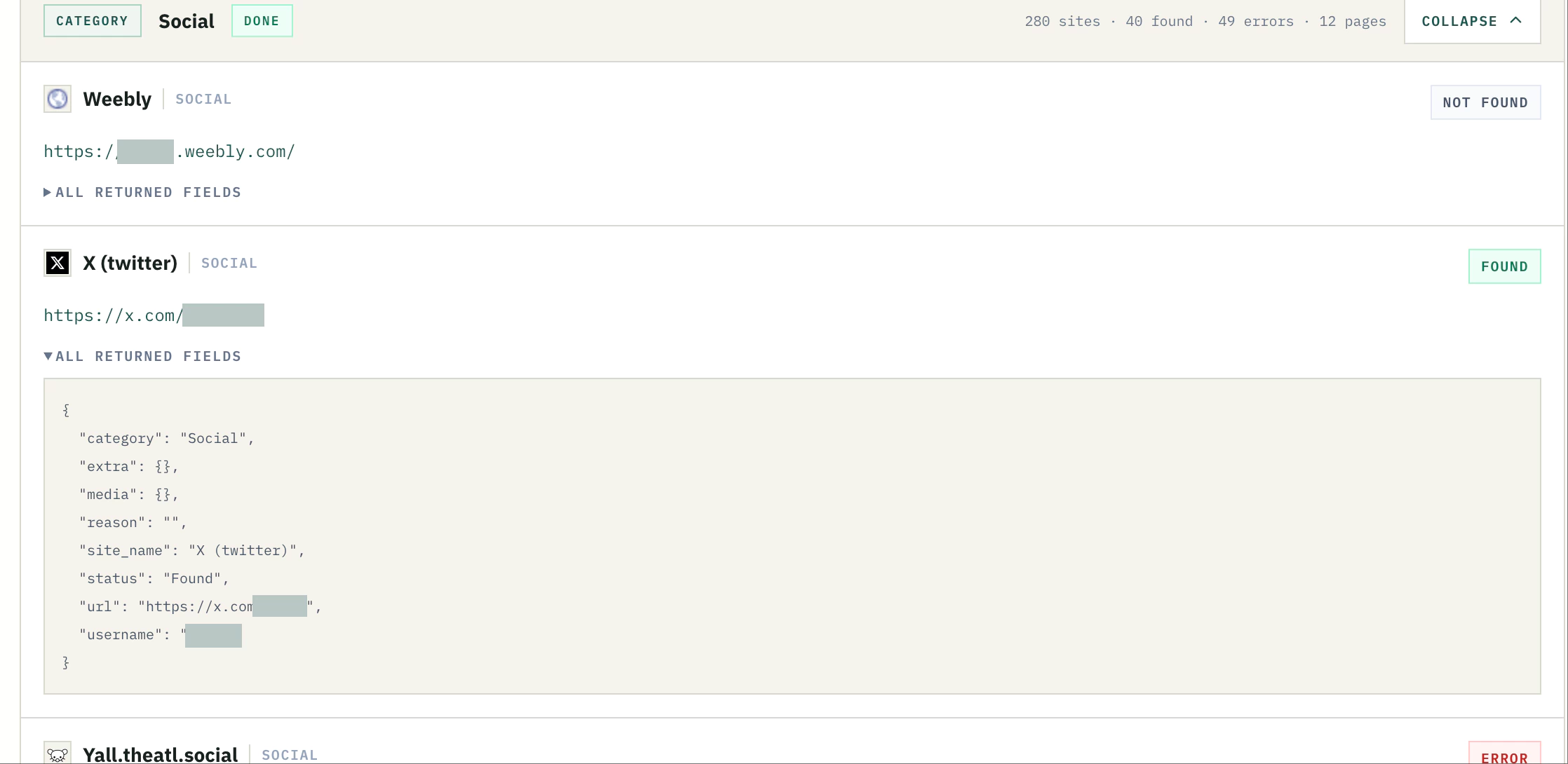
In the illustrated X record, site_name identifies the module as X (twitter), category is Social, and status is Found. The url is the returned source route; username is the queried handle. The empty reason supplies no further explanation. Empty extra and media objects mean this record contains no additional values in those objects, not that the platform account has no biography or media.
This JSON is the scanner's returned record, not a captured copy of the target site's complete HTTP response or an independently authenticated archive. Preserve the status, reason, source URL, and observation time in your research notes when appropriate. Standard history saves normalized positive matches; it is not a substitute for the entire live log.
Professional review needs the non-positive rows because they describe coverage gaps. Not Found is a negative response from one check; Error might reflect a block, timeout, or changed rule. Counting both as absent accounts would misrepresent what the scan established.
Part 2: How to find possible accounts associated with an email address
1. Submit a complete address and choose history settings
Use Email Search when your question concerns a service's registration signal for an address. This differs from searching a username: the result may identify a service without exposing any public account page. Email OSINT here does not read an inbox, retrieve private messages, or establish whether the mailbox currently receives mail.
- Select the Email tab.
- Enter one complete address, such as
[email protected], without surrounding commentary. - Enable Privacy mode before submission if you want to skip first-party history creation.
- Select Start scan, then inspect both positive cards and the complete response log.
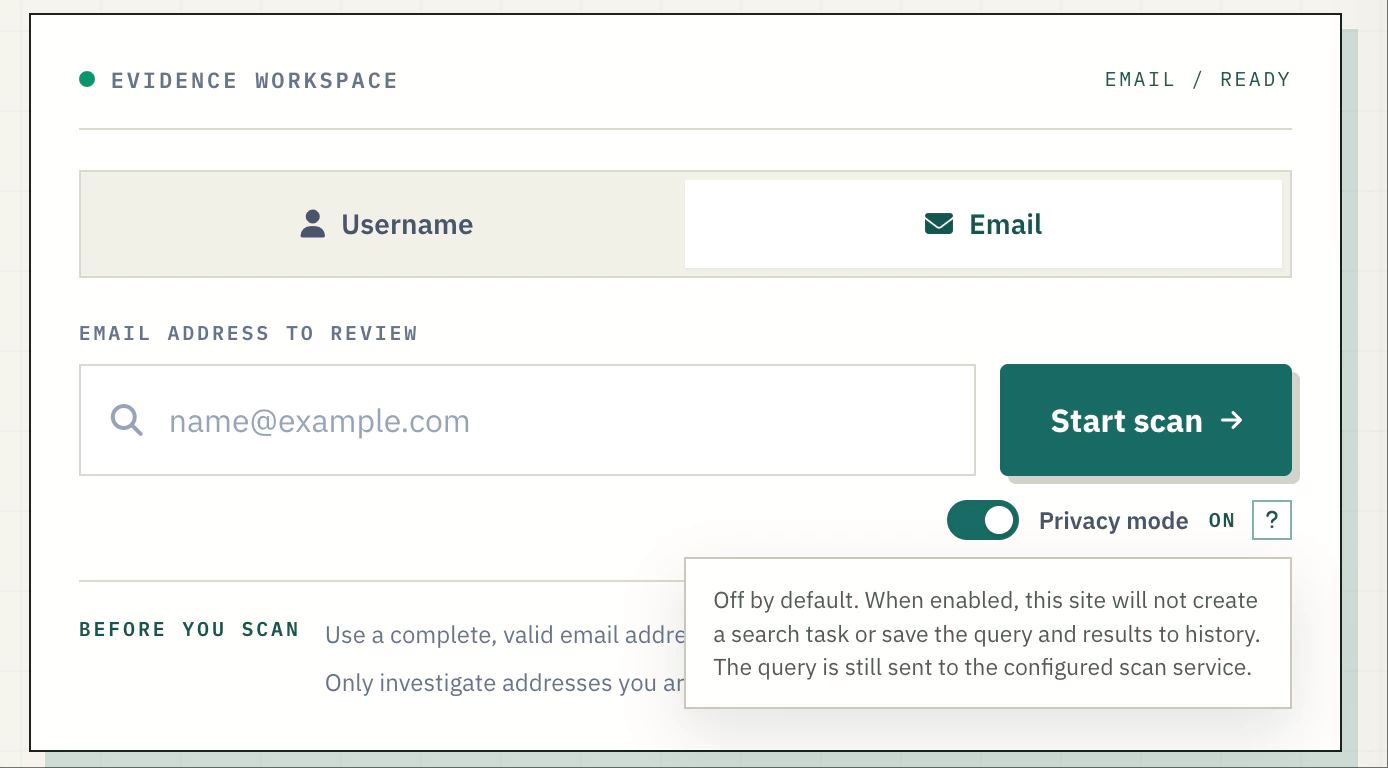
The browser trims the input and requires non-whitespace content on both sides of @ plus a dotted domain. This is a basic format check, not mailbox validation. Do not infer successful delivery from an accepted address. Aliases and plus-address variants can receive different service responses; query only a specific address you are authorized to assess rather than assuming variants are interchangeable.
Privacy Mode has the same scope as in username search. It prevents this interface from creating a task or saving the query's positive results to application history. The scan provider still receives the address. Check the switch before starting: it is locked during a run, and enabling it for a later scan does not remove earlier records.
2. Follow category-by-category email scan progress
The email configuration contains 168 services across 20 categories, including Social, Dev, Creator, Shopping, Entertainment, Learning, and Jobs. Unlike username search, it uses one category lane. The current category and page appear in the live heading, and that category finishes before the next begins.
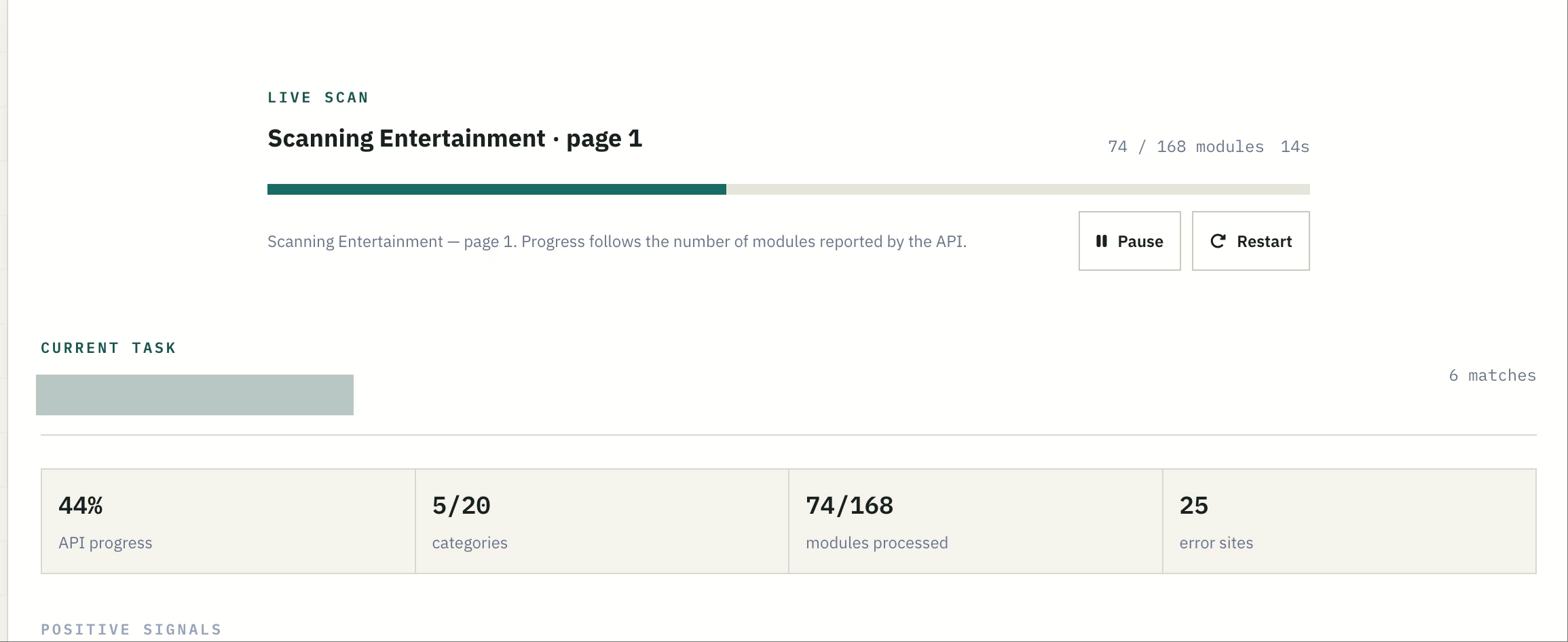
Figure 9 shows 74 of 168 modules processed, five ended categories, six possible matches, and 25 error rows. These are separate measures. Positive cards can appear before the run ends, and a module count can increase even when a source produces an error or an inconclusive response.
Elapsed time varies with response latency, pagination, service availability, anti-automation controls, and rate limiting. The screenshot's 14 seconds is one partial observation, not an expected runtime. Discover Profile uses shared scanning infrastructure, so a provider's treatment of that infrastructure may differ from what you see in your own browser.
Pause and Continue control subsequent requests; in-flight responses can still arrive. Restart begins a fresh run after confirmation if a scan is active. If a page request fails, the client ends that category and continues its remaining work without automatically retrying the failed page. Review the log before deciding whether a later, limited recheck is appropriate.
3. Interpret possible email account matches
Only a normalized Registered status becomes an email match card. Each card shows the service, category, and returned signal, plus available extra details. This is service-specific account context. It does not prove that an investigator controls the address or that a named person operates the account.
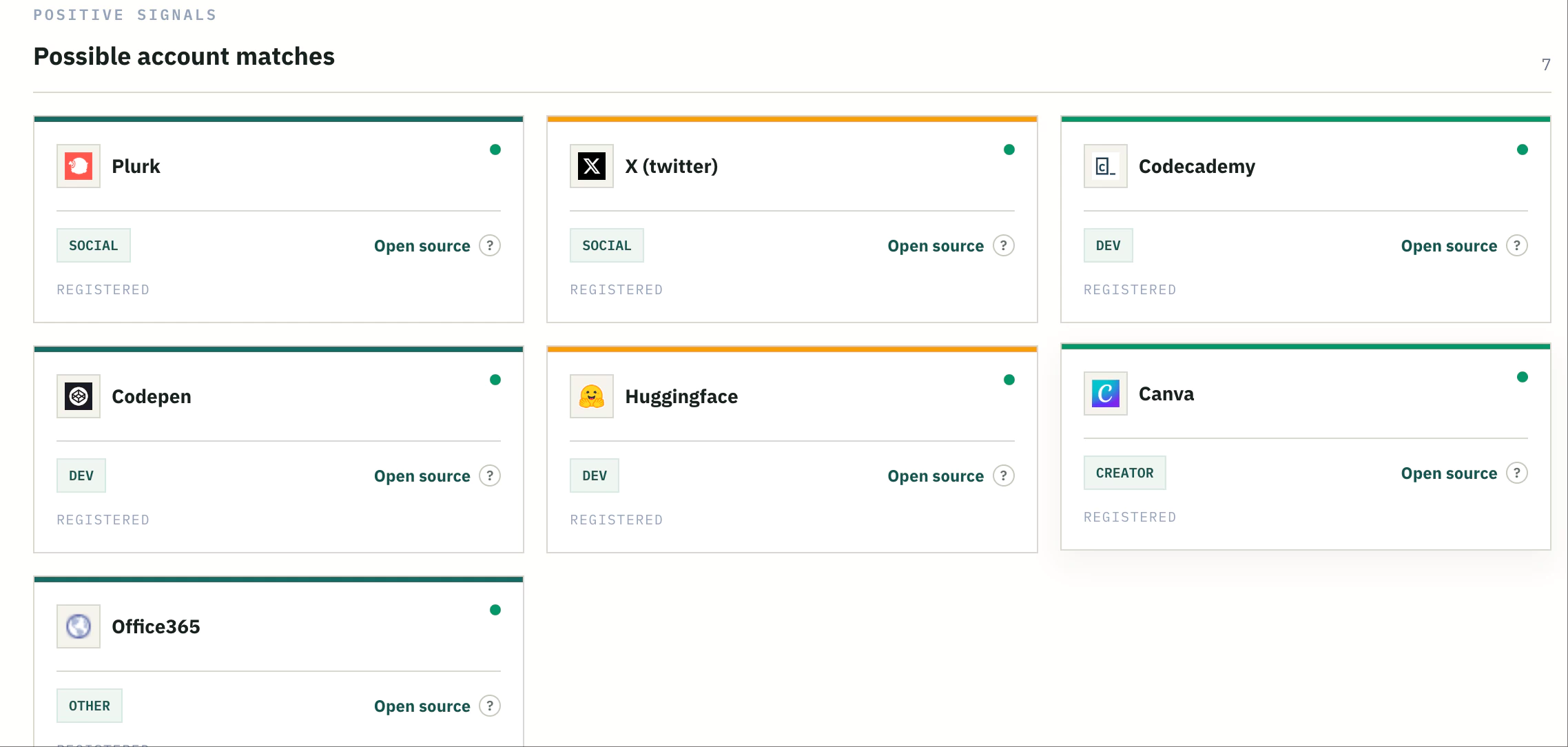
The illustrated Plurk, X, Codecademy, Codepen, Huggingface, Canva, and Office365 cards show the output format. They are not independently verified claims about the person behind the masked query. The match count measures distinct cards, not distinct people or complete inventories of their accounts.
Many email checks use registration or recovery behavior that does not reveal a username or account ID. Open source can therefore lead to a service homepage rather than a personal profile. The question-mark help explains this limitation. If no usable URL is supplied, the interface displays No URL. A homepage link is useful context but is not itself evidence identifying an account.
Hypothetical example: an authorized audit of [email protected] returns Registered for two services. The defensible note is that those checks reported positive registration signals at the observation time. It would be unsupported to write that the mailbox is active, that both accounts are currently used, or that the address owner personally created them. Verification needs additional authorized evidence.
4. Review every email response and its reason
Expand a category in All returned site rows to inspect individual services, status labels, URLs where available, and explanatory reasons. The category header uses a shared found counter label; in email mode it counts Registered rows under the email classifier. It does not change those rows into username Found results.
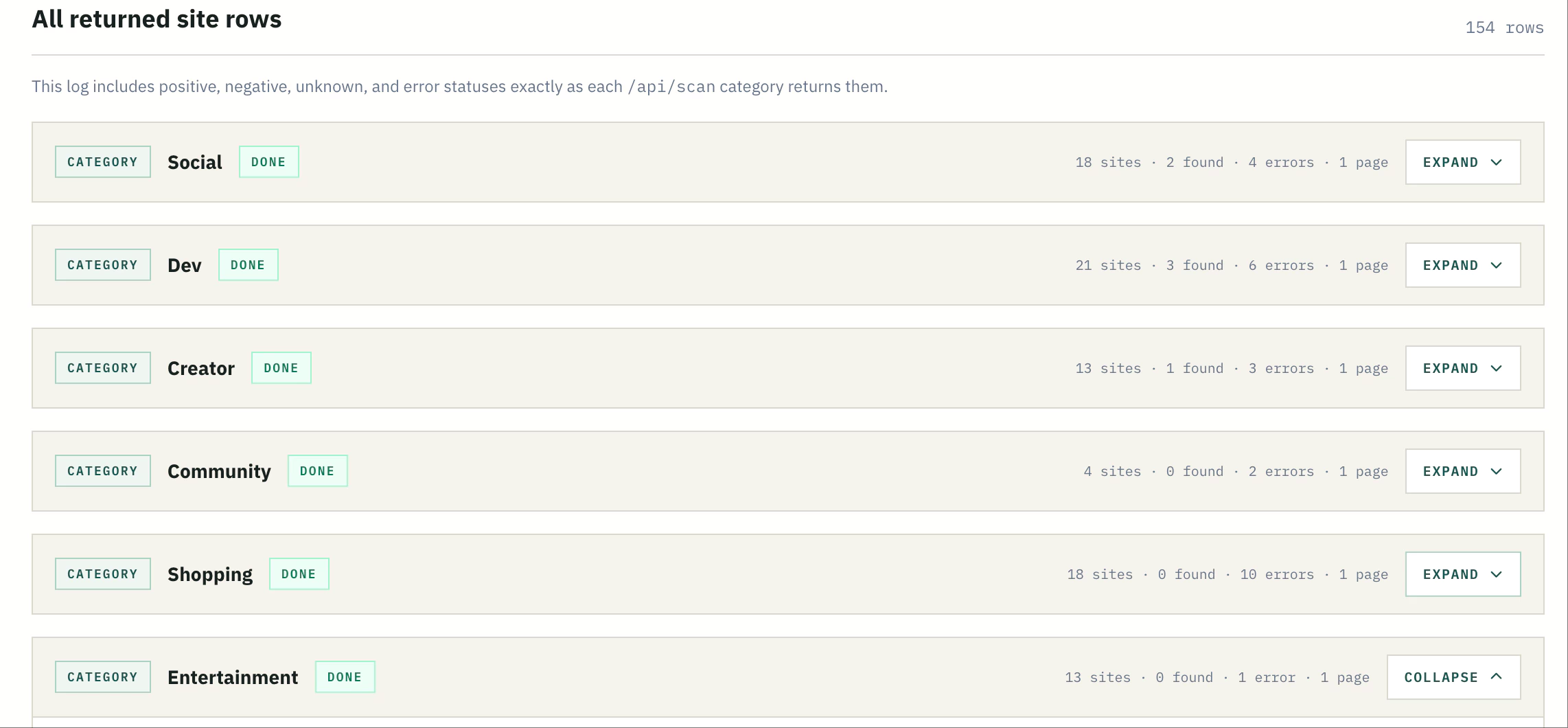
The screenshot shows 154 returned rows while the configuration covers 168 services. Returned rows and configured checks are different measures; some modules or failed requests may not supply a row. The image alone does not explain this difference. Read the run's errors and pagination rather than assuming missing rows are negative checks.
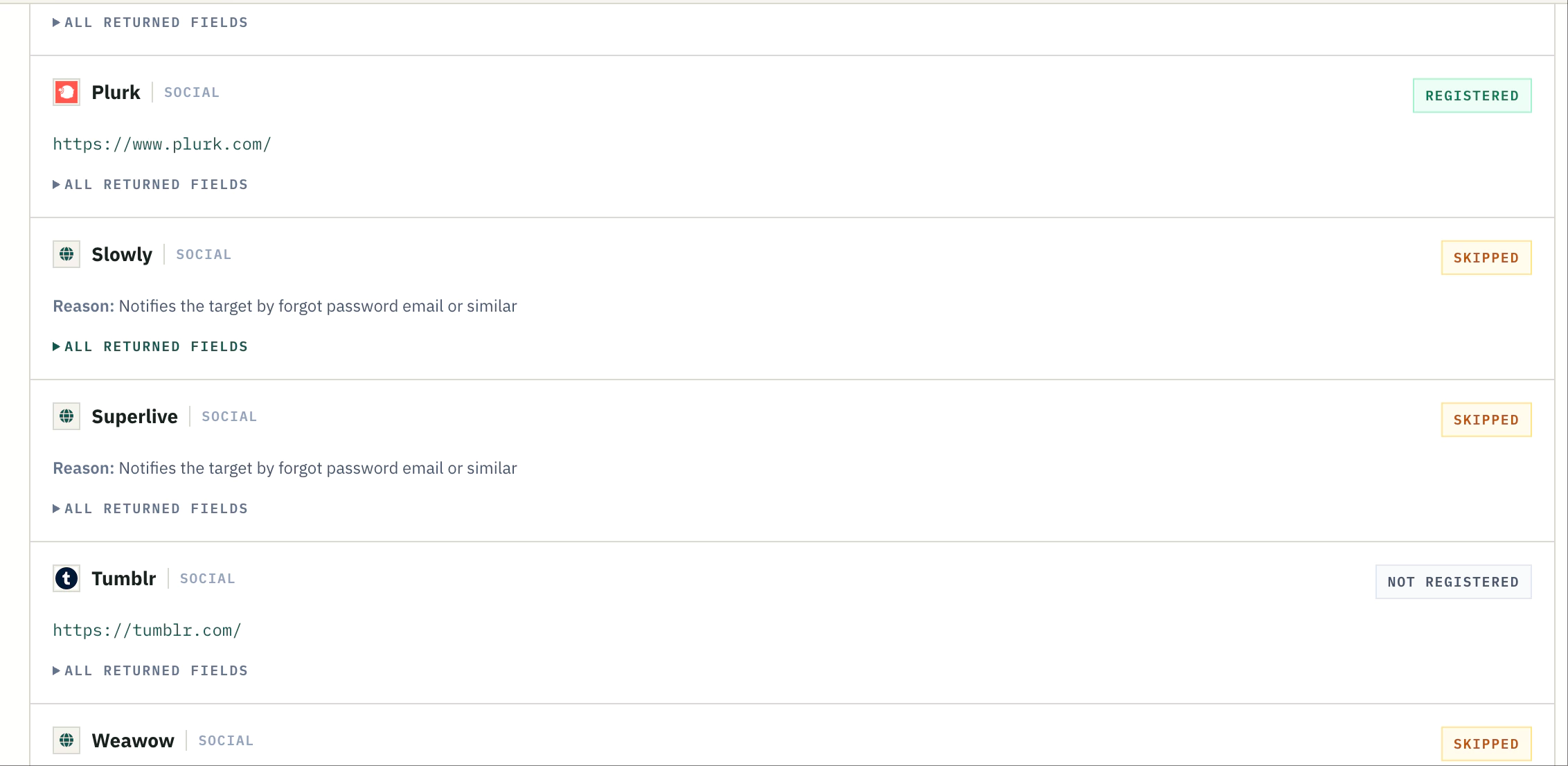
Slowly and Superlive carry the reason Notifies the target by forgot password email or similar
. The scanner skipped those checks because performing them could send a notification to the queried address. Skipped therefore describes a check that was not performed, not a finding that the address lacks an account.
Use All returned fields to inspect the complete returned record when the short explanation is insufficient. Keep four questions separate: did the check execute, did service restrictions affect it, did it produce an account-existence signal, and is there evidence identifying an owner? A positive answer to one does not settle the others. Do not manually trigger recovery messages merely to turn a skipped row into a result.
Part 3: Understand scan result statuses
Status names belong to their workflow and source response. The interface promotes exact positive statuses to cards while keeping other responses in the log. The following comparison is an interpretation aid, not a rule for translating one service's vocabulary into another's.
| Username status | Email status | Meaning and next step |
|---|---|---|
| Found | Registered | A positive source signal. Inspect the original context; identity, ownership, and activity remain unproven. |
| Not Found | Not Registered | A negative response from this check at this time. Confirm important negatives and consider source limitations. |
| Unknown | Unknown | Inconclusive. Preserve the reason and leave the existence question unresolved. |
| Error and error-like states | Error and error-like states | An unsuccessful check, such as a reported failure, timeout, or exception. Investigate the failure before interpreting absence. |
| Other non-positive states | Skipped | Requires the source's specific explanation. A skipped notification-producing check supplies no negative registration conclusion. |
Hypothetical example: a category returns three Found rows, two Not Found rows, and four Error rows. Report three candidates, two negative observations, and four unresolved checks. Do not subtract positives from the category total and call everything else absent. If a separate page request fails, mention that coverage gap as well: its missing services may not appear among the error rows.
Part 4: Verify a possible match at its source
A useful verification workflow separates account existence from attribution. A genuine profile may belong to someone else; a correct handle may lead to a generic page. Assess each proposition before combining the findings.
- Inspect the original source. Open the returned URL, confirm the platform and handle, and check whether the page is an actual profile. Record login walls, unavailable content, and redirects.
- Compare public identifiers. Look for an explicit website link, a consistent public handle, or a profile cross-reference. Similar avatars and common names are weak evidence on their own.
- Examine metadata in context. Read biographies, public project links, creation dates, and available account type fields. Separate an account's own claims from independently established facts.
- Check the timeline. Ask whether dates and activity fit the proposed relationship. A changed handle or recycled account can break an apparent connection.
- Seek independent corroboration. A reciprocal public link is more informative than several websites repeating one scraped biography. Avoid counting duplicated material as separate evidence.
- Record uncertainty. Retain the observation date, returned status, source route, limitations, and a proportionate conclusion such as candidate, corroborated link, or unresolved.
Hypothetical reused-username example: river-lantern appears on a creator page, a developer site, and a gaming forum. The creator page links directly to the developer profile, which links back. The gaming forum shares only the handle. Treat the reciprocal pair as a supported relationship between those profiles, while keeping the forum separate. Even the pair does not automatically establish a legal name or rule out impersonation.
For your own accounts, authenticated settings or records you already control may provide corroboration beyond public pages. For other subjects, keep verification within your authorization and available public evidence. When evidence conflicts, preserve competing explanations instead of forcing a single identity cluster.
Part 5: Troubleshooting and common limitations
Start by deciding whether the problem concerns the input, the scan request, the platform response, or the interpretation. Repeatedly restarting a broad scan is rarely the most informative first step.
- False positives and soft 404 pages. A route may return a normal-looking page even when the requested profile is absent. Check the visible handle and account-specific content; a successful HTTP response or generic page title is insufficient.
- False negatives and changed URLs. Recheck spelling and confirm the platform's current route from its own public navigation. Private, renamed, deleted, or dynamically rendered profiles may not be detected. A missing card does not prove permanent absence.
- HTTP 403, rate limits, and CAPTCHA. Inspect the reason and record the check as restricted or unresolved. Shared-server reputation, geography, and bot controls can affect access. Wait before a limited recheck; do not treat blocking as an account finding or attempt to bypass the control.
- Timeouts and unavailable platforms. Check whether the public service loads normally and note the time. A later observation can resolve a temporary outage, but it does not rewrite what the first run showed.
- API or page-request errors. Review the category log and completion message. The client does not automatically retry failed pages, and Done may mark a category that stopped early. Record incomplete coverage explicitly.
- Incomplete metadata. Compare the source page with the returned fields. An empty extra object can reflect limited extraction; the details panel also applies parsing limits. Do not manufacture missing names, dates, or contact information.
- No positive email matches. Read Not Registered, Unknown, Error, and Skipped separately. A clean format check is unrelated to delivery, and an address with no positive cards may still have accounts outside observable coverage.
If a standard-mode scan cannot start, first inspect its error message: task creation precedes scanning and can fail independently of the scan provider. Privacy Mode changes history behavior; it does not repair an unavailable source. When reporting a reproducible issue, provide the query type, affected service, observed status, approximate time, and minimal safe context. Exclude passwords and private messages.
Part 6: Privacy, ethics, and responsible OSINT
Use account discovery for lawful, authorized research with a clear purpose. Start with your own identifiers where possible. Public availability is not blanket permission to aggregate sensitive details, contact a subject, or publish an attribution. Minimize what you retain and avoid consequential judgments based on an automated match.
In standard mode, Discover Profile creates a browser-linked history task and can save normalized positive results as they arrive. Negative, unknown, and error rows remain in the live log rather than being stored as positive matches. History is available through the current browser identifier; optional Google sign-in is not required. Protect shared browser access accordingly.
Privacy Mode skips those application-history writes but does not suppress ordinary connection metadata, third-party scan requests, page analytics, or every provider's logs. Rendering valid source URLs can also request icons from Google's favicon service. Opening a source sends a new browser request to that site. Read the Privacy Policy before submitting a sensitive identifier; do not assume private browsing or a history switch makes the entire research anonymous.
Keep research notes proportionate to the question. If sharing a result is justified, redact unnecessary identifiers and distinguish observed facts from inference. An unresolved result is an acceptable outcome. Preserving uncertainty is more useful than publishing a confident connection that the evidence cannot support.
Frequently asked questions
Can I find social media profiles with just a username?
You can locate candidates across the configured sources. Use the exact handle, review Found cards, and verify the original pages. Common or reused usernames can identify unrelated accounts, so additional public evidence is needed before attributing them to a person.
How can I find accounts linked to an email?
Submit a complete address in Email Search, review Registered cards, then inspect each service's row and reason. This can reveal registration-style signals, but it may not reveal a username or direct profile link. It cannot produce a guaranteed inventory of every account using that address.
Does Found prove that the account belongs to someone?
No. Found describes the username check's positive response. First confirm that the returned page is the intended profile, then assess attribution separately using contextual identifiers and independent corroboration. A correct detection can still be assigned to the wrong person.
What does Registered mean in an email OSINT scan?
The service check returned a positive registration signal for the submitted address. It does not verify current mailbox delivery, ownership, account activity, or control. A service-homepage link on the card should not be presented as a person's profile URL.
Why are websites marked Skipped or Error?
Read the reason. Skipped can mean a check was withheld because it might notify the address. Error describes unsuccessful processing or a reported technical failure. Neither supplies the negative conclusion represented by Not Registered or Not Found.
Does Privacy Mode make a scan anonymous?
No. It prevents the scan's first-party history task and result writes. The configured scan API still receives the identifier, and ordinary web requests have connection metadata. Enable it before starting; it does not delete previous history.
Why do platforms return different profile details?
Each module depends on what its source exposes and how its response is parsed. One platform may return a status and route; another may include a biography, creation date, or project link. Inspect the original context instead of treating missing fields as negative facts.
Can Discover Profile guarantee that all associated accounts will be found?
No. Coverage is configured, external services change, and access controls or request failures can limit a run. Completion means the current client work has ended. Review the full log, document gaps, and supplement only with proportionate, authorized source checks.
Put the evidence into practice
Choose the identifier that fits your question, set history preferences before submitting, and monitor the scan without treating progress as confidence. Review both possible matches and unresolved rows. Then return to the source, compare independent evidence, and document only what you can support.
Start an authorized username search to explore candidate public profiles, or use email search for registration-style account signals. The useful result is a defensible observation with its limits intact.
Was this research useful?
Let us know this research note helped.